Paste a Spotify link to begin
 Support us on Ko-fi
Clean interface, minimal clicks, reliable links. Works on desktop and mobile.
What Is a Spotify to mp3 Downloader? (And When You Should Use One)
A Spotify downloader is a web tool that turns shareable Spotify links into portable audio you can keep for offline listening. The concept is simple: copy a track, album, or playlist URL, paste it, choose MP3, and save the file to your device.
- Spotify Downloader: a general tool that processes public Spotify links and returns downloadable audio.
- Spotify Music Downloader: highlights music-focused results such as tracks, albums, and playlists.
- Spotify to MP3 Converter: emphasizes converting supported audio into an
MP3file, often up to 320kbps.
Use a downloader when you need quick, personal access to audio on devices that don’t run the Spotify app, or when you’re practicing, studying, or previewing selections without streaming. For exploring artists, building libraries, or following creators, the official experience at open.spotify.com remains the best starting point.
Legality and ethics matter. Convert only content that is legally available, copyright-free, or explicitly permitted for download. Avoid private, paid, or DRM-protected sources, and follow local laws and platform terms to respect artists and rights holders.
When you need a simple, no-login workflow that prioritizes responsible use, the web app at myspoty.app is a clean option for straightforward link-to-MP3 conversion.
Why Choose Our Spotify to MP3 Converter (Free, No Login, All Devices)
Our Spotify to MP3 converter is built for people who value simplicity and speed. You don’t need to install anything or create an account—just paste your Spotify link, and your download starts in seconds. It’s a fast, lightweight solution that works directly in your browser, whether you’re using a phone, tablet, or computer.
Because it’s web-based, it supports all major operating systems—Windows, macOS, Android, and iOS—without the clutter of additional software. The interface is minimal on purpose, focusing on what really matters: converting and saving your favorite tracks efficiently.
We don’t store or track any personal data, so your downloads stay private. Every conversion happens securely and is automatically cleared after completion. You’ll always have control over what you download, with no sign-ups or hidden costs.
Quality also sets us apart. The converter delivers clean, high-bitrate MP3 files—up to 320kbps—so you keep the same crisp sound you enjoy on Spotify. Whether you’re building playlists for offline listening or collecting royalty-free tracks for creative projects, the MySpoty converter gives you reliable, high-quality results on any device.
How to Use the Spotify to MP3 Downloader (Step-by-Step Guide)
Our Spotify to MP3 downloader is designed for effortless use on any device. Whether you want to save a single song, an entire playlist, or a full album, the process is fast, intuitive, and requires no sign-up. Follow these simple steps to start converting Spotify music into MP3 files you can enjoy anywhere.
Method 1: Download a Single Track from Spotify to MP3
Step 1: Find the Song Link in Spotify
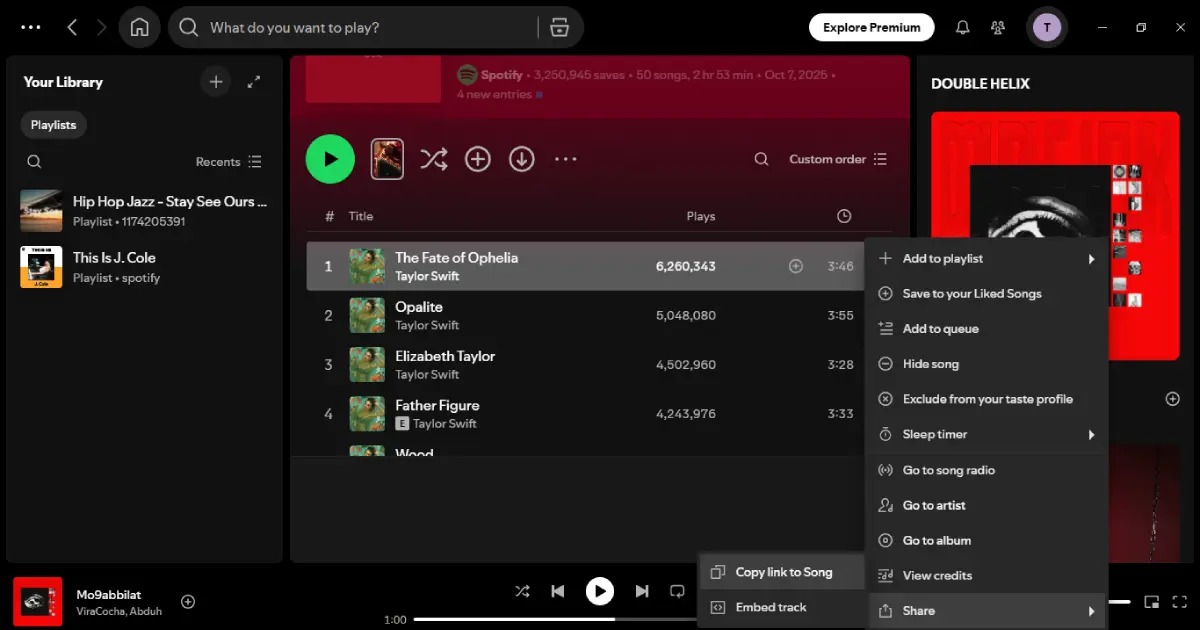
Open Spotify and search for the track you want to convert. Click the three dots next to the song title, select Share, and choose Copy Song Link. This will copy the URL to your clipboard.
Step 2: Paste the URL into the Downloader
Go to MySpoty and paste the copied link into the input field. The tool will automatically detect the song details and prepare it for conversion.
Step 3: Choose MP3 (Up to 320kbps) and Download
Select the desired quality—typically 320kbps for crisp, high-quality sound—and click the Download button. Your MP3 file will be generated and saved directly to your device within seconds.
Method 2: Download a Whole Spotify Playlist to MP3
Step 1: Copy the Playlist Link
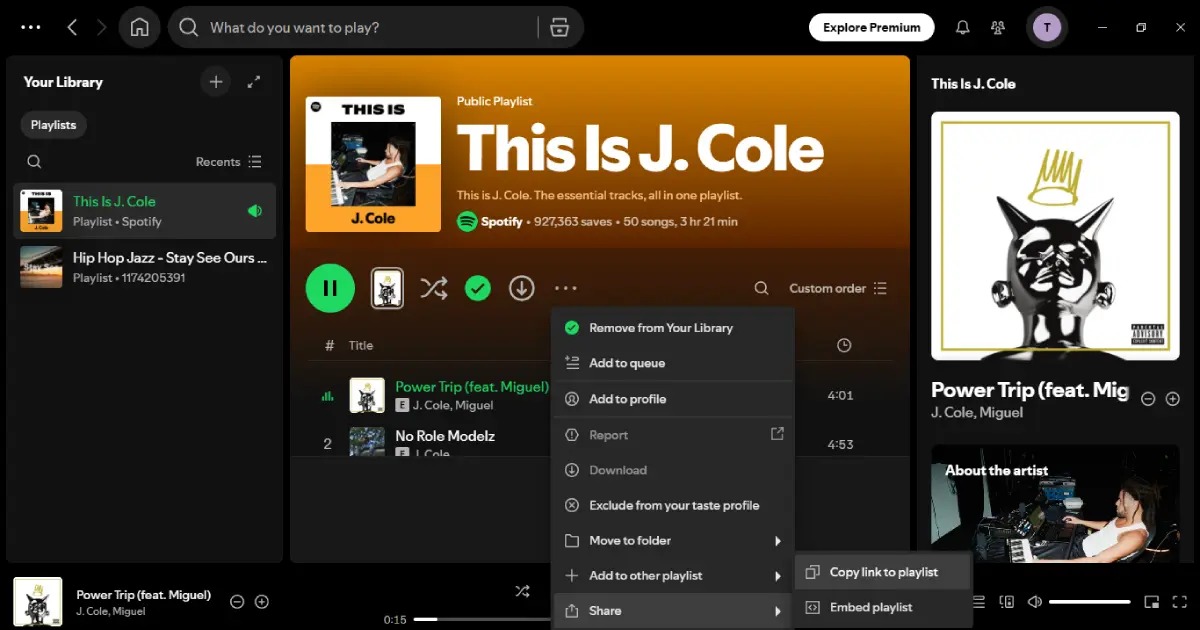
In Spotify, open the playlist you’d like to download. Click the three dots beside the playlist title, select Share, and choose Copy Playlist Link.
Step 2: Paste → Select “Playlist” → Start
Head to MySpoty, paste the link, and select the Playlist option. Then hit Start to initiate batch processing of your songs.
Step 3: Bulk Download & Save to Device
Once the conversion finishes, you can bulk download all the tracks in MP3 format. The files will retain their original order and metadata for easy playback on any device.
Method 3: Download a Spotify Album to MP3
Album Link → Paste → Convert → Download
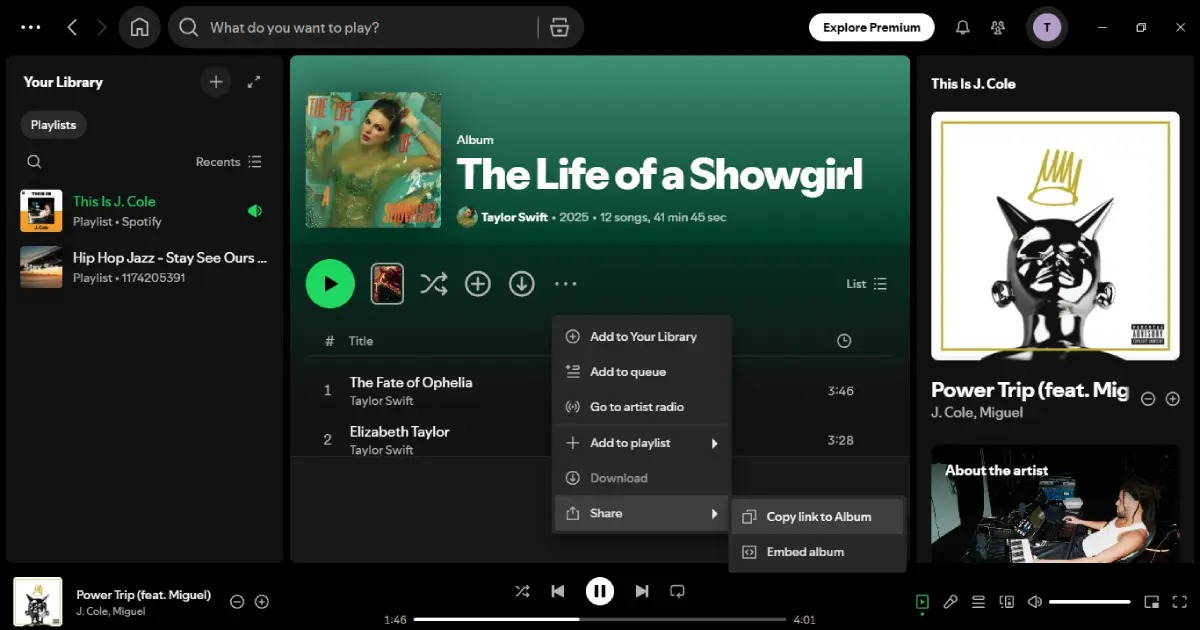
For albums, copy the album link from Spotify, paste it into MySpoty, and click Convert. The tool will process every track in the album, letting you download them together as high-quality MP3 files ready for offline listening.
Features: The Best Spotify Music Downloader for Quality & Speed
The MySpoty downloader is built with one clear goal—deliver the fastest, cleanest, and most reliable Spotify to MP3 conversion possible. Every feature focuses on user experience, ensuring you can save music quickly without sacrificing audio quality or privacy.
High-Quality MP3 Output (Up to 320kbps)
Enjoy crisp, studio-grade sound quality with MP3 outputs up to 320kbps. The downloader maintains excellent clarity across all frequencies so you can listen with the same rich detail as streaming on Spotify. Whether you’re building playlists for work, travel, or study sessions, each converted file sounds authentic and balanced.
Fast Conversion & Batch Downloads
Speed matters, and our Spotify Music Downloader converts links into ready-to-download MP3s within seconds. You can also process entire playlists or albums at once using the batch download feature—perfect for users who prefer organizing music in bulk instead of one track at a time.
No App, No Login, No Ads
Forget about downloads, sign-ups, or annoying pop-ups. The platform runs entirely online and doesn’t require any installation. It’s ad-free, lightweight, and designed to get you straight to the music without distractions or hidden costs.
Works on Windows, macOS, Android, iOS, and Linux
MySpoty works seamlessly across all modern devices and browsers. Whether you’re on Windows, macOS, Android, iOS, or even Linux, you’ll experience the same fast conversions and consistent sound quality—no compatibility issues, no extra setup.
Keeps Basic Metadata (Title, Artist, Cover*)
The downloader preserves essential metadata like song title, artist name, and album cover* when available, making your music collection easier to organize and identify. This helps keep your offline playlists neat, searchable, and visually complete.
Spotify Playlist Downloader: Convert Full Playlists to MP3
Looking to download Spotify playlist to MP3 in just a few clicks? The MySpoty Playlist Downloader lets you convert entire Spotify playlists into high-quality MP3 files, ready to play offline on any device. No installations, no sign-ups—just paste the playlist link, and your tracks are ready in moments.
This feature is ideal for users who enjoy long, curated playlists for workouts, road trips, or study sessions. Instead of downloading songs one by one, MySpoty processes the whole playlist at once, keeping the track order and basic metadata intact. The system ensures each file retains excellent sound fidelity, up to 320kbps, so your offline experience matches the clarity of streaming on Spotify.
Whether your playlist includes a few favorites or hundreds of tracks, the downloader handles it efficiently. Simply copy the playlist URL, paste it into the downloader, and select “Playlist” to start the conversion. In just a few minutes, you’ll have your full collection in MP3 format—organized, portable, and compatible with any device or media player.
Spotify to MP3 vs. Spotify Downloader: What’s the Difference?
The terms Spotify to MP3 and Spotify Downloader often appear together, but they’re not exactly the same thing. Understanding the difference helps you choose the right tool depending on what you want to do with your music.
A Spotify Downloader is a broader tool—it allows users to save songs, albums, or playlists from Spotify for offline listening. It’s designed to make music accessible on different devices without requiring the Spotify app. These tools focus on convenience and bulk downloading.
Meanwhile, a Spotify to MP3 Converter specifically transforms each track into an .mp3 file. It’s more about audio conversion than downloading. This type of tool is perfect when you want to spotify download mp3 versions of songs for use in other players, editing software, or portable devices that don’t support streaming.
In short, a Spotify Downloader lets you grab music from Spotify, while a Spotify to MP3 Converter changes its format into MP3 for wider compatibility. The MySpoty web app combines both — fast downloads and direct MP3 conversion — giving you the best of both worlds in a single, user-friendly platform.
Supported Formats & Quality: MP3 Bitrate, File Size, and Metadata
The MySpoty downloader focuses on high-quality, widely compatible audio. Every conversion is optimized for clarity, file size, and playback performance. You can choose different MP3 bitrates depending on your storage space and audio preferences, while keeping essential metadata like song titles, artist names, and cover art whenever available.
What 320kbps Means (and Common Bitrates)
The term 320kbps refers to the amount of audio data processed per second — specifically, 320 kilobits per second. It’s the highest standard bitrate for MP3 files and provides near-CD-quality sound, making it ideal for music lovers who value detail and depth.
Common bitrate options include:
- 128kbps – Smaller file size with moderate quality, good for mobile storage or slow connections.
- 192kbps – A balance between quality and size, suitable for everyday listening.
- 320kbps – High-fidelity MP3 with rich sound and minimal compression loss.
ID3 Tags & Cover Art: What’s Preserved
During conversion, MySpoty retains basic ID3 tags—including song title, artist name, and album information—so your music library stays organized. When available, it also preserves the album cover art, ensuring each file looks as good as it sounds in your media player or playlist.
This thoughtful preservation of metadata means that even after conversion, your MP3s remain searchable, properly labeled, and visually complete across all devices and apps.
Device Guides: Download Spotify to MP3 on Any Device
The MySpoty Spotify to MP3 downloader works seamlessly across all major platforms. Whether you’re on a desktop, tablet, or smartphone, you can easily download and save your favorite Spotify tracks as MP3 files without installing any software. Below are quick guides for each device type to help you get started.
Windows & macOS (Desktop Browsers)
On a computer, open your preferred browser—such as Chrome, Firefox, or Safari—and visit MySpoty. Copy your Spotify track, album, or playlist link from Spotify and paste it into the downloader field. Click Convert, choose your preferred bitrate (up to 320kbps), and save the MP3 file directly to your computer. Downloads are instant and don’t require installation or login.
Android (Mobile Browsers)
Using Chrome or any modern Android browser, head to MySpoty and paste your Spotify link. Once converted, the MP3 file will download to your phone’s Downloads folder. You can play it with your default music player or move it to a playlist app for offline use.
iPhone/iPad (Safari + Files App Tips)
For iOS users, open Safari and go to MySpoty. Paste the Spotify URL and start the conversion. After the MP3 file is ready, tap Download and select Save to Files to store it in your iPhone’s Downloads or a custom folder. You can then access the track through the Files app or transfer it to your favorite music player for offline listening. No extra app or configuration is needed—just a clean, browser-based process.
Browser Tips: Clipboard Paste, Drag-Drop Links, and Quick Shortcuts
The MySpoty downloader is built with convenience in mind. Beyond simple copy-paste, it includes several small UX features that make your Spotify to MP3 conversion even faster and smoother—perfect for frequent users who value time and simplicity.
Clipboard Paste: As soon as you open MySpoty, the tool automatically detects copied Spotify URLs from your clipboard. If you’ve already copied a track or playlist link, it will appear in the input field instantly—no manual pasting required.
Drag-and-Drop Links: You can also drag a Spotify track, playlist, or album link directly from your browser into the MySpoty input box. The downloader will recognize it automatically and begin preparing your MP3 conversion.
Quick Bookmark Shortcut: To make access easier, add a MySpoty bookmark in your browser toolbar. Simply drag the website icon (🔗) to your bookmarks bar or press Ctrl + D (Windows) or Cmd + D (Mac). Next time you’re browsing Spotify, just click the bookmark and you’ll jump straight to the downloader—ready to paste and convert instantly.
These small time-savers make MySpoty feel less like a tool and more like a seamless extension of your Spotify experience.
Legality, Usage, and Ethics: Downloading Only Available & Copyright-Free Content
At MySpoty, we believe that technology should empower creativity without compromising copyright integrity. That’s why our downloader is built for fairness, transparency, and user control — ensuring that every conversion respects both artists’ rights and platform policies.
When It’s Okay to Convert Spotify to MP3
It’s acceptable to use a Spotify to MP3 downloader when the content you’re saving is legally available for free or falls under copyright-free, public domain, or Creative Commons licensing. Examples include royalty-free background music, podcasts released under open licenses, or independent artist tracks you have permission to use. You can also convert and store your own uploaded material for backup or personal archiving.
What You Should Avoid (DRM/Protected/Paid Content)
It’s important not to download or convert any content that’s protected by DRM (Digital Rights Management) or part of Spotify’s paid, premium, or subscription-based catalog. Doing so may violate the platform’s terms of service or local copyright laws. Our downloader does not bypass encryption or access private data, and we encourage users to respect content boundaries and legal frameworks when using any tool, including ours.
Our Stance: No Storage of User Files, No Tracking
MySpoty operates on a strict no-storage, no-tracking policy. We never keep logs of your activity, store converted files, or collect personal data. Every conversion is processed in real time and deleted immediately after download. Your privacy and security are fully protected, and you remain the sole owner of your generated files. Our platform exists to simplify access — not to monitor or misuse it.
By using MySpoty responsibly, you support ethical digital use while still enjoying the freedom to access music and media safely and legally.
Troubleshooting: If Spotify to MP3 Isn’t Working
Even though MySpoty is designed for fast, reliable performance, occasional errors may happen due to link issues, playlist size, or device storage. Here’s how to resolve the most common problems when converting Spotify tracks to MP3.
“Link Not Valid” / “Cannot Fetch”
If you receive a message like “Link Not Valid” or “Cannot Fetch”, make sure your Spotify link comes directly from open.spotify.com and not from the app’s internal share format. Copy the full URL using the three-dot menu → Share → Copy Link. Avoid shortened or embedded links, which may not be recognized by the downloader.
Playlist Too Large / Partial Downloads
Large playlists with hundreds of tracks can take longer to process. If only part of your playlist converts, try breaking it into smaller sections and re-downloading. This helps prevent server timeouts and ensures each song is converted completely. You can also refresh the page and paste the next batch to continue where you left off.
Slow Conversions / Network Timeouts
Slow conversion speed is often caused by unstable internet connections or temporary network congestion. Refresh the page, check your connection, and try again after a short wait. For best performance, use a stable Wi-Fi or wired connection rather than mobile data.
Mobile Storage & File-Opening Issues
If your MP3 downloads don’t appear or won’t open on mobile, check your Downloads folder or the default Files app. On iPhone, use Save to Files when prompted, then open the track via your chosen player. On Android, confirm that your storage isn’t full and that permissions are enabled for browser downloads.
Following these quick fixes will usually resolve most Spotify to MP3 conversion issues and help you get back to enjoying your music offline with MySpoty.
Performance & Limits: Speed, Queue Size, and Fair Use
MySpoty is optimized for both speed and reliability, allowing users to convert Spotify tracks to MP3 with minimal waiting time. However, like any free web-based service, there are certain performance and usage considerations to ensure fairness and stability for all users.
Conversion Speed & Processing Time
Most single-track conversions complete within seconds, depending on your internet connection and current server load. Batch or playlist downloads may take longer as each song is processed individually to maintain audio quality and consistency. For the best experience, avoid multiple browser tabs running conversions simultaneously.
Queue Size & Batch Downloads
To keep the system fast for everyone, MySpoty processes downloads in small, manageable batches. You can queue several tracks at once, but excessively large playlists may be split into smaller groups automatically. If you notice a delay between songs, it’s likely due to temporary queue balancing on the server side.
Daily Usage Limits & Fair Use Policy
There are no strict daily download caps for individual users, but MySpoty relies on a fair use policy to prevent abuse or automated mass downloading. If heavy usage is detected, temporary rate limits may apply to maintain performance for other users. Simply wait a short time before continuing conversions.
Maintaining Consistent Performance
To ensure smooth performance, always use an updated browser and avoid VPNs or proxies that may slow down connections. MySpoty continuously monitors uptime and server responsiveness to keep your Spotify-to-MP3 downloads fast, secure, and uninterrupted.
These limits are designed to maintain MySpoty’s stability and guarantee that everyone enjoys quick, reliable, and high-quality conversions every time they visit.
Use Cases: Study, Podcasts, Public Domain & Copyright-Free Music
The Spotify to MP3 downloader can serve various legitimate purposes beyond casual music listening. Many users rely on it for personal, educational, and copyright-free content — all within fair and legal boundaries.
Educational/Personal Offline Listening
Students, researchers, and professionals often use MySpoty to access podcasts or study playlists while offline. Whether it’s a motivational speech, a business talk, or a foreign-language lesson, having audio files saved as MP3 makes it easier to listen during commutes or while studying without needing an active internet connection.
Using the downloader for personal study material or freely distributed educational audio ensures a smooth and practical experience, helping learners focus without distractions or ads. Offline accessibility is especially useful for users in low-connectivity regions or during travel.
Public-Domain/License-Free Audio
Another popular use case involves downloading public-domain or royalty-free audio hosted on Spotify. Many creators upload open-license music, ambient sounds, or meditation tracks that are completely legal to convert for offline playback. These files can be reused for creative projects, background soundtracks, or even remixing, depending on the license terms.
To stay compliant, always confirm that the audio you convert is copyright-free or shared under a Creative Commons or similar open license. MySpoty promotes ethical use and encourages users to respect artists’ rights while enjoying accessible, high-quality MP3 content.
For legal streaming and discovery of more free-to-use tracks, you can also explore Spotify’s public-domain and podcast collections.
Safety & Privacy: No Login, No Tracking, No File Retention
At MySpoty, your safety and privacy come first. Our Spotify to MP3 downloader is designed to be completely anonymous — no registration, no account, and no personal data collection required. You can enjoy quick, private conversions without sharing any information or logging in.
We never track what users download or store any links or files on our servers. Every conversion happens in real-time, and once completed, your data is automatically cleared. This ensures your activities remain confidential and your downloads secure.
Unlike many other tools, MySpoty does not use intrusive ads, cookies, or analytics scripts that compromise privacy. The platform operates with a strict no-tracking and no-storage policy, giving you full control over your experience.
For complete transparency, you can review our Privacy Policy to understand how your data is protected, or reach out directly via our Contact Page if you have any questions or concerns about your security or usage.
Comparisons & Alternatives (When You Need Something Else)
While MySpoty is one of the fastest and easiest Spotify to MP3 converters available, some users may need alternative tools for specific purposes such as higher formats or offline desktop solutions. Understanding these differences helps you pick the right tool for your needs.
Spotify to MP3 Converter Free vs. Desktop Apps
Online tools like MySpoty run entirely in your browser—no installation, no updates, and instant results. They’re ideal for quick downloads from any device. Desktop apps, however, can sometimes handle larger playlists or advanced tagging options but often require setup, updates, or even login credentials. For most users, the online option is faster and safer for everyday use.
When Lossless (FLAC) Makes Sense—and When It Doesn’t
Some audiophiles prefer converting to FLAC for a lossless experience. However, since Spotify streams compressed audio, converting to FLAC doesn’t improve quality—it only increases file size. Unless you’re archiving public-domain tracks recorded in high fidelity, sticking with MP3 320kbps remains the most practical balance between quality and storage efficiency.
What About YouTube to MP3? (Different Source, Different Rules)
YouTube-to-MP3 tools follow an entirely different process and serve a different purpose. Unlike Spotify, YouTube content includes both videos and music, and not all uploads are legal to convert or reuse. Always ensure that the material you download is copyright-free or available for public use. MySpoty focuses solely on legally available Spotify content to ensure responsible and safe conversions.
Best Practices: Organizing Your Library After Download
Once you’ve converted your favorite tracks or playlists using MySpoty, organizing them properly ensures your music collection stays neat and easy to navigate. A little structure goes a long way in keeping your offline library efficient and enjoyable to use.
Folder Naming & Auto-Sorting
Create clear folder structures such as Artist → Album → Track or Genre → Year → Song. Consistent naming makes it simple to find songs later or sync them across devices. You can also use your file explorer’s sorting features to automatically organize by artist, album, or date added. This helps you keep track of what’s new and prevents duplicates.
Tag Editors & Cover Art Fixes
Even though MySpoty preserves basic metadata such as track title and artist, sometimes additional editing is useful. Free tag editors like Mp3tag or MusicBrainz Picard can fill in missing album names, genres, and release years. You can also use them to restore or change album artwork for a more polished look. Maintaining accurate tags enhances your experience across music players and keeps playlists visually consistent.
Updates & Roadmap
We’re continuously improving MySpoty to make your Spotify to MP3 experience faster, smoother, and more reliable. Our goal is to keep expanding functionality while maintaining simplicity and safety for every user.
Upcoming updates will include better handling for long playlists, enhanced album downloads, and improved metadata preservation—so your tracks retain accurate titles, artists, and covers automatically. We’re also optimizing conversion speed for heavy queues and ensuring compatibility with more devices and browsers.
Stay tuned for new features such as multi-format support (beyond MP3), batch tagging options, and improved offline playback organization. You can bookmark this page or visit the Contact section if you’d like to share feedback or request specific features to be added in upcoming versions.
Frequently Asked Questions (FAQ)
How to download Spotify songs to MP3?
The easiest way is to use a reliable online converter like myspoty.app. Simply copy the song link from Spotify, paste it into the converter box, and download the MP3 version instantly—no app or signup required.
How to download music from Spotify to MP3?
To download music from Spotify to MP3, use myspoty.app. It allows you to convert tracks directly from Spotify into high-quality MP3 files that can be played on any device, all without needing Spotify Premium or special software.
How to download MP3 from Spotify?
With myspoty.app, you can easily download MP3 files from Spotify. Just copy the track’s URL, paste it into the tool, and click the download button. The system converts the song automatically into a 320kbps MP3 file for offline use.
How to download a whole playlist from Spotify?
Use myspoty.app to convert and download entire Spotify playlists. Paste the playlist link, select “Playlist” mode, and download all the songs at once in MP3 format—perfect for creating your personal offline music library.
Is this Spotify to MP3 converter free?
Yes, our converter is completely free to use. There are no hidden fees, sign-ups, or premium restrictions. You can download unlimited songs, playlists, or albums without paying anything.
Do I need an account or Spotify Premium?
No account or Spotify Premium subscription is required. You only need the Spotify link to start downloading MP3s. Everything runs directly in your browser.
Is converting Spotify to MP3 legal?
It’s legal as long as you convert and use songs that are copyright-free or under open licenses. Avoid downloading or redistributing protected or paid Spotify content without permission.
What’s the highest quality (bitrate) I can download?
You can download tracks at up to 320kbps MP3 quality, which provides clear, high-fidelity sound suitable for any player or device.
Can I download albums and podcasts?
Yes, both albums and podcasts are supported. You can paste an album or podcast episode link just like a regular song or playlist and download them in MP3 format.
Can I convert multiple songs at once?
Yes. The batch conversion feature allows you to queue and download multiple Spotify tracks or entire playlists simultaneously for added convenience.
Why does my link say “not supported” or “private”?
This message usually appears if the Spotify link is private, region-locked, or contains DRM-protected content. Make sure the playlist or song is public and accessible before converting.
Where do downloads go on Android/iPhone/Windows/Mac?
On Windows and macOS, files are saved in the default “Downloads” folder. On Android or iPhone, check the browser’s download manager or the “Files” app to locate your converted tracks.
Does the tool keep a copy of my files?
No, myspoty.app does not store or track any user files. All conversions are temporary and deleted automatically after processing for full privacy and security.
Are there limits to the number of downloads?
There are no strict limits. However, to ensure fair use and stable server performance, very large bulk downloads may be queued or processed gradually.
How fast is the conversion process?
Conversion speed depends on file length and server load, but most tracks are processed in a few seconds. Batch downloads or large playlists may take slightly longer.
Which formats are supported besides MP3?
Currently, MP3 is the main format supported. However, future updates may include additional formats such as M4A or FLAC based on user feedback and demand.
Glossary: Terms You’ll See (Bitrate, ID3 Tags, DRM, Public Domain)
Bitrate: The amount of data used to encode one second of audio, usually measured in kbps (kilobits per second). A higher bitrate like 320kbps means better sound quality and larger file size.
ID3 Tags: Metadata embedded in MP3 files that stores information such as the song title, artist name, album, genre, and sometimes cover art. Tools like myspoty.app preserve basic ID3 tags during download.
DRM (Digital Rights Management): A technology used by Spotify and other platforms to protect copyrighted songs from unauthorized copying or redistribution. Files with DRM cannot be legally downloaded or converted without permission.
Public Domain: Music or recordings that are free of copyright restrictions. These can be downloaded, shared, or remixed legally. Always check if a track is in the public domain before downloading or reusing it.
Conclusion: Start Using the Free Spotify Music Downloader
Enjoy your favorite songs anytime, anywhere with a reliable and easy-to-use Spotify Music Downloader. Whether you want to save a single track, a full playlist, or an entire album, converting Spotify to MP3 is now faster and simpler than ever.
With myspoty.app, you can download music without limits — no login, no software installation, and no hidden fees. It’s the perfect way to back up your favorite tunes for personal, offline listening.
Ready to start? Scroll up and paste your Spotify link into the downloader to experience the fastest, most secure way to turn Spotify songs into MP3.
Legal & DMCA
MySpoty is a utility for personal offline listening from links you are allowed to use. We respect intellectual property rights and respond to valid takedown requests. To contact us, please include the URL in question and proof of ownership.